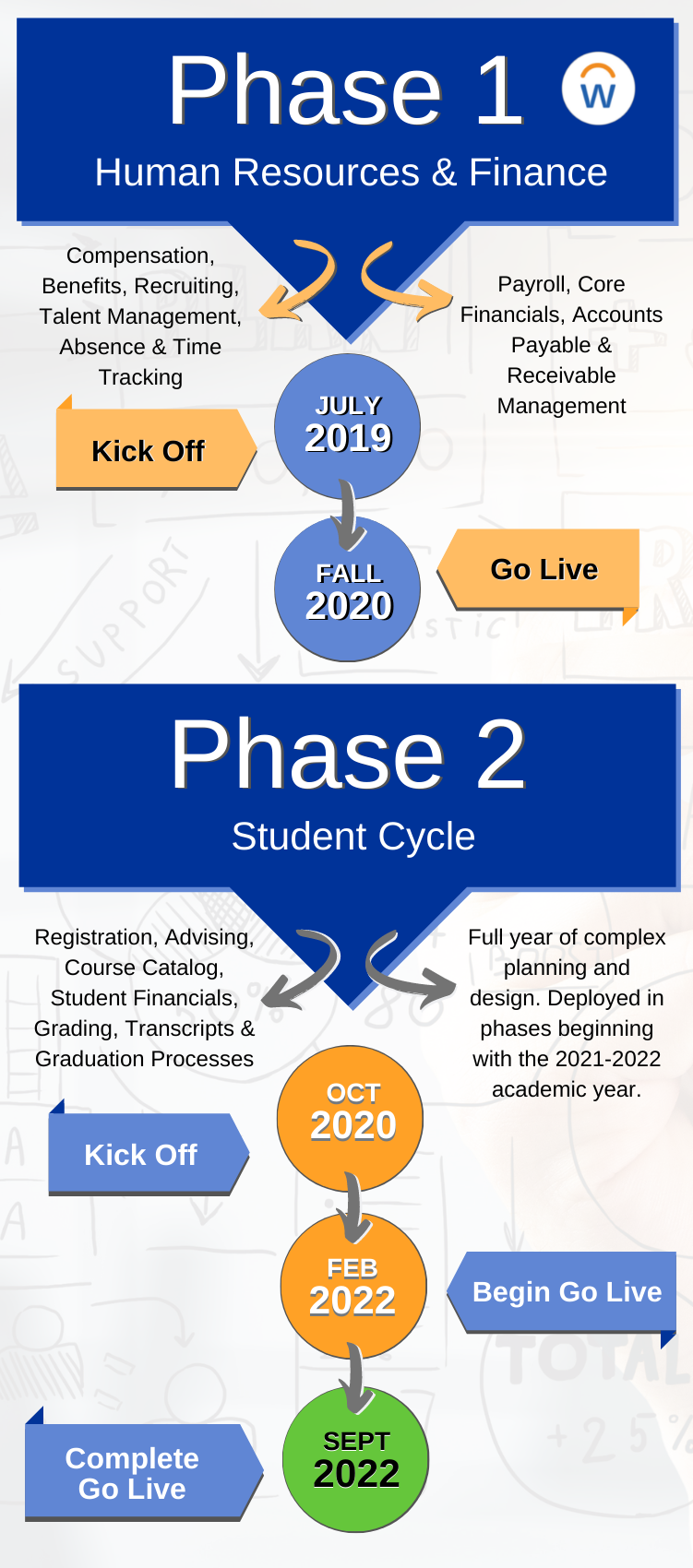

With Workday Student Phase One now live, the Offices of the University Registrar and Information Technology Services are offering a Workday Student Information Session for Faculty and Staff that will take place on Wednesday, March 9th, from 12:00 p.m. -1:00 p.m. in the Stackhouse Theater in Elrod Commons. Topics to be discussed include key changes relative to terminology and basic processing in Workday. We will hold a Q&A afterwards to answer any questions you may have.
Functionality for Students
Workday’s “Friends and Family” functionality allows you to provide electronic authorization for third-parties (such as parents or guardians) to access your educational record. Moving forward, this feature will serve as W&L’s official proxy service.In addition to granting access to your record, Friends and Family also allows you to determine what types of information a selected individual may access. Types of permissions include making a payment, viewing a financial aid package, viewing account activity, viewing a student statement, viewing current classes, and viewing student grades.As a reminder, federal law (FERPA) stipulates that your explicit consent is required prior to the disclosure of any of your educational records. This means that, if you want a third party to access your educational information, then you must grant them access in Workday. Find out more at the Workday Student training website.
Workday Student Project Awareness
Want to help bring awareness to the phase one project launch? Please feel free to include one of the following graphics in your email signature with a link to the Workday Student Training site (https://my.wlu.edu/its/workday-student) or the project website (https://projectworkday.wlu.edu/). Simply right click to save an image to your computer.



For those using Desktop Outlook as your email client, right click to save the signature image to your computer. Next, you can get instructions to add a signature here.
1) Using the instructions provided by Microsoft, look for this icon to add the image 
2) To add a link to your image, look for this icon 
If you’re using Outlook in your Web browser, follow these quick steps after saving the image to your computer.
- Click the gear icon
- Click “view all Outlook settings”
- Click “compose and reply”
- Click the “insert pictures inline” icon and select the reminder graphic.
- Finally, place your cursor to the right of the newly added image, then click on the “insert hyperlink” icon to add a link to the project website.